Strange software failures? Check your disk space
From time to time, a piece of software that has been working reliably suddenly doesn’t. The most common reason for Mascot Server to fail is running out of disk space, which can cause all kinds of weird faults. Proteomics software is more prone to it than others due to the large size of input data and temporary files created during processing. Below, we’ve collated tips and advice for diagnosing and fixing this.
Mascot Server
When you run out of disk space, Mascot Server may give a variety of odd errors, such as:
- Submitting a search fails due to truncated input or missing search parameters
- Database search starts but then terminates prematurely (may appear as a “crash”)
- Unable to create session file when trying to log in to Mascot Security
- Unable to view results report due to caching error
The three largest consumers of disk space are sequence databases (‘sequence’ directory), results files for database searches (‘data’ directory) and cache files created for reports (‘data/cache’ directory). These can be found in the installation path, which defaults to C:\inetpub\mascot on Windows and /usr/local/mascot on Linux. (Your path may differ if Mascot Server is installed in a different location.)
The sequence directory will only grow in size when you add new databases. If you have configured regular database updates in Database Manager, then Mascot Server will download new FASTA files to a schedule, but it will delete the oldest copies automatically. It’s worth checking the ‘incoming’ directory for each database, as they may contain unused temporary files from failed download attempts. The largest databases (NCBIprot, UniRef100) may take half a terabyte of space, so if they are no longer used, it may be worth deactivating them and archiving the FASTA files.
How long to store search results in the ‘data’ directory is something to discuss with your Mascot users. If searches older than 12 months are rarely or never accessed, you could set up a scheduled task to archive or delete results files older than 12 months. If you want to keep them available just in case, Mascot Server ships with a tool, tidy_data.pl, for compressing old search results. The results reports automatically decompress files when viewed, so compressing them does no harm. Full instructions are in chapter 7 of the Installation & Setup manual (search for “tidy_data”), but basically you can enable the script by uncommenting one line in mascot.dat.
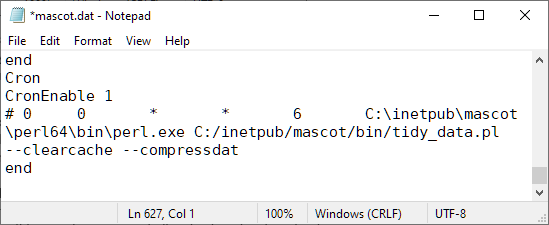
Finally, the cache directory contains temporary files to speed up report loading and interactive navigation. If you quickly need to free up space, deleting the contents of ‘data/cache’ will help. The tidy_data.pl script can be used for regular cleaning of old cache files too.
Mascot Server is, like the name says, a server application. It can be installed on a laptop or workstation and used interactively, but very often it’s installed on a system in a different room or building, out of sight. It can be easy to miss the early warning signs if you don’t regularly log in via remote desktop or SSH to the server. If your IT team already has a monitoring framework, like Cacti, Checkmk, Nagios or Zabbix, ask them to add a sensor for disk space usage on the Mascot Server PC. Make sure you get an email alert when free space drops below 10%. It’s also possible to write a PowerShell or bash script that simply emails you a daily or weekly report of disk usage.
Mascot Distiller
Mascot Distiller can be used interactively or through Mascot Daemon. When used interactively, the user interface will warn you if any write operation failed due to lack of disk space, so it should be obvious when to take action.
The largest consumers of disk space are raw files, the project files (.rov) and temporary files created during normal operation. The project files include all data created during processing, such as peak lists, Mascot search results and quantitation results. If your disk is full of .rov files, then it’s safe to move them to a different disk. Just make sure you also move the raw files to the same disk as the project files contain links to the raw data. If Mascot Distiller can’t find the raw file, it will prompt you for its location the next time you open the project.
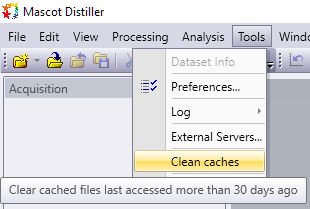
Distiller creates several temporary files and cache files during normal operation. These are stored in C:\ProgramData\Matrix Science\Mascot Distiller\Temp. The quickest way to trim the cache is opening the Tools menu and selecting Clean caches, which deletes temporary files that were accessed more than 30 days.
Mascot Daemon
Mascot Daemon also creates temporary files and various output files. If there is no free disk space, then most of the time, the next Daemon task will simply end with an error. Or, if Daemon is installed on the same PC as Mascot Server, then Daemon may simply report the error from Mascot (such as truncated input).
We have occasionally seen a more severe fault: “Array dimensions exceeded supported range”. This is typically caused by task database corruption. By default, Daemon uses VistaDB as the task database, which is stored in a single data file. If you run out of disk space while the VistaDB file is being written, it may result in database corruption. Please contact us if this happens to you – we may be able to fix or restore the task database for you.
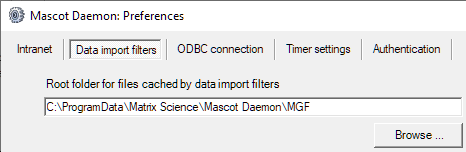
Typically, Daemon is configured to use Mascot Distiller or ProteoWizard msconvert to convert raw data into peak lists in MGF format. By default, the peak lists are stored in C:\ProgramData\Matrix Science\Mascot Daemon\MGF, although you can change this in Daemon preferences (under Data import filters). If you use Mascot Distiller, then the Distiller project files (.rov) are also saved there. The peak list files do not need to be archived, as they can be recreated from the Mascot results file or Distiller project file. However, it’s quite likely you want to keep or at least archive the project files as it can take a long time to recreate them from the raw data.
Daemon doesn’t produce other files or download database search results, although it may be configured to automatically export the results. If this is enabled, then you will have selected an output path for the results and should regularly check whether anything can be deleted there.
Keywords: database manager, Mascot Daemon, Mascot Distiller, MGF, sysadmin